 Objective
Turn claim‑related email subscriptions on or off so you only receive the notifications that are useful to you.
Who can do this
All users.
Steps
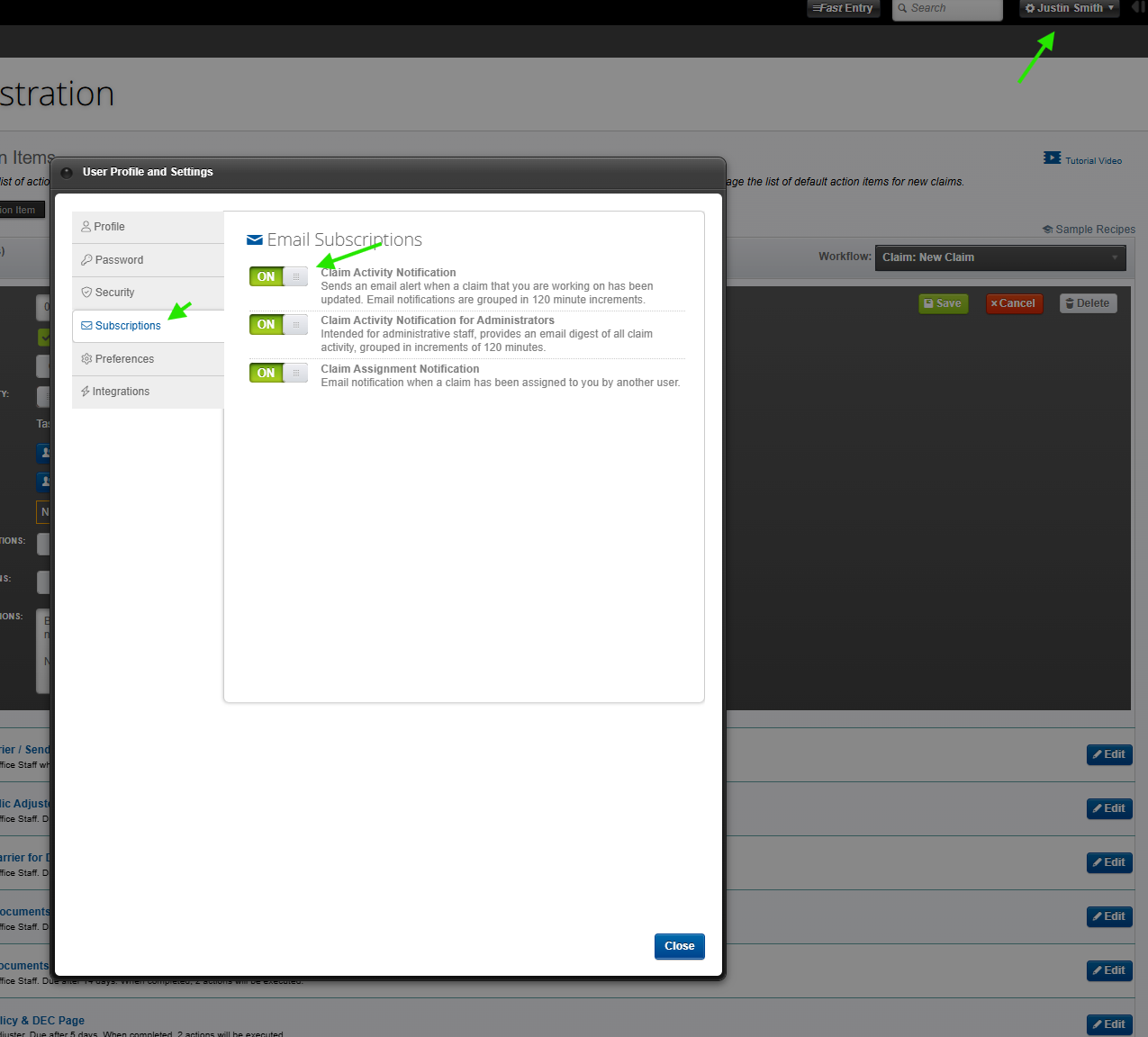
- Click your User Profile and Settings icon (usually your name or profile icon in the ClaimWizard interface).
- In the left‑hand menu, click Subscriptions.
- Under Email Subscriptions, locate Claim Activity Notification and move the toggle to ON if you want email alerts when claims you are working on are updated, or to OFF if you do not want those alerts.
- Locate Claim Activity Notification for Administrators and move the toggle to ON if you are an administrator and want a digest of all claim activity grouped in 120‑minute increments, or to OFF to stop those digest emails.
- Locate Claim Assignment Notification and move the toggle to ON if you want an email when a claim is assigned to you by another user, or to OFF if you prefer not to receive assignment emails.
- Review all three subscription settings to make sure they match the way you want to be notified, then click Close to exit User Profile and Settings.
What You Should See
After you update your Email Subscriptions, you will only receive the claim activity, administrator digest, and claim assignment emails that match the toggles you turned ON. Any subscriptions you turned OFF will stop generating email notifications for your user account.